Break-glass accounts are supposed to be the identities you can trust when everything else has gone wrong.
A Conditional Access mistake has locked out the administrators. An identity service is unavailable. Privileged Identity Management cannot be activated. The normal administrative route into the tenant has failed.
Microsoft recommends maintaining two or more "cloud-only" emergency access accounts for precisely these situations. These accounts are normally assigned the Global Administrator role permanently and reserved for circumstances in which normal administrative accounts cannot be used.
That solves the availability problem. But it creates another question:
Who can change the accounts that are meant to recover the tenant?
The gap in many break-glass designs
Most emergency-access guidance quite rightly concentrates on sign-in:
- Use cloud-only accounts that do not depend on an on-premises identity provider.
- Use strong, phishing-resistant authentication.
- Keep the accounts available outside the normal privileged-access process.
- Monitor every sign-in.
- Test them regularly.
- Those are essential controls, but they do not fully protect the underlying identity objects.
Depending on the roles assigned in the tenant, an administrator may still be able to modify account properties, authentication methods or group membership. The security group used to exclude the accounts from Conditional Access is particularly important. If somebody can quietly add another account to that group, they may be able to create a route around policies intended to protect every other administrator.
This is why break-glass protection should cover two different planes:
- Authentication protection: controlling how the emergency account signs in.
- Management protection: controlling who can modify the account and the groups surrounding it.
A well-designed break-glass implementation needs both.
Where restricted management administrative units help
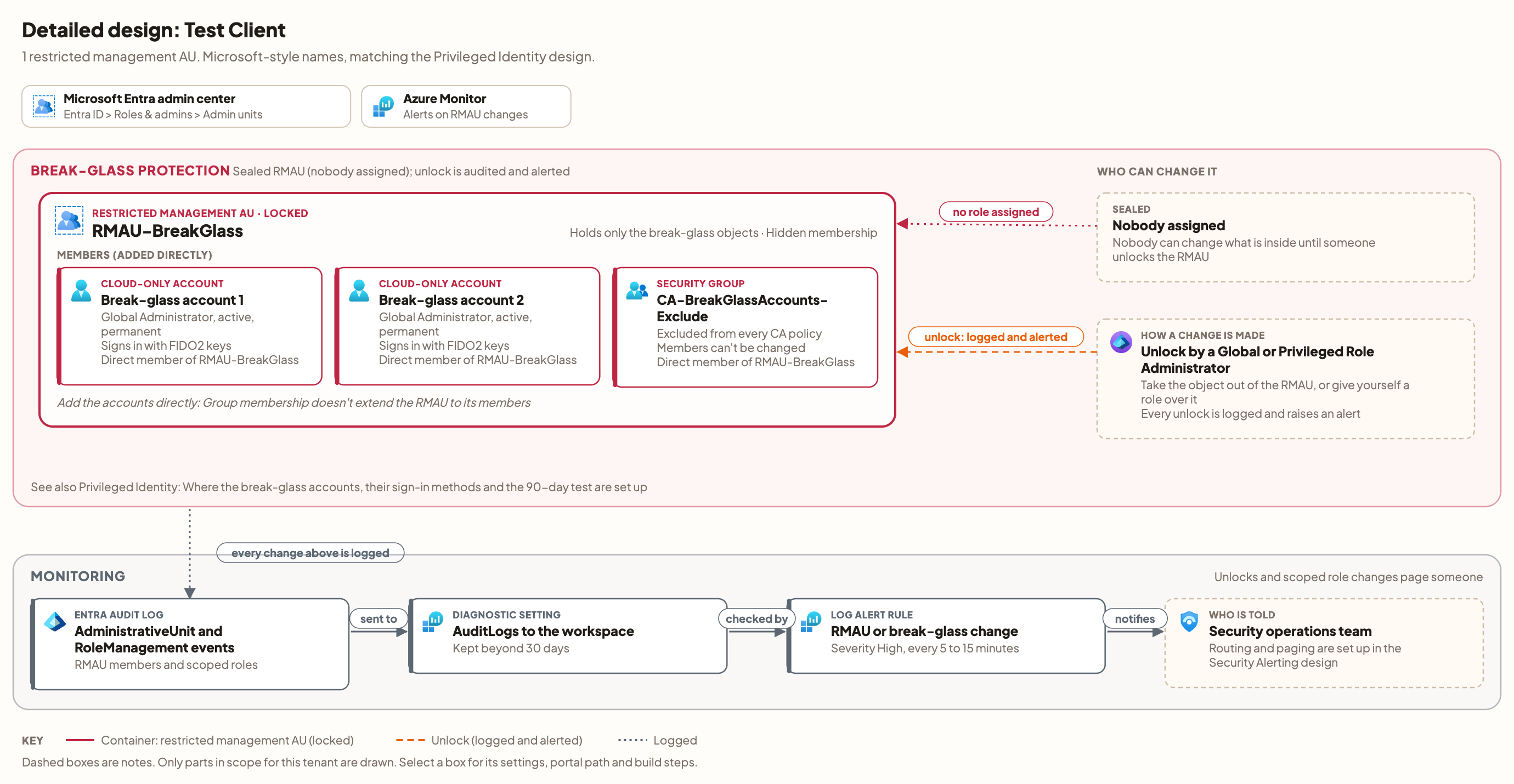
A Microsoft Entra restricted management administrative unit, or RMAU, creates a protected management boundary around selected users, security groups and devices.
When an object is placed in an RMAU, tenant-wide administrative roles no longer automatically provide permission to modify that object. An administrator must have an appropriate role assigned specifically at the scope of the RMAU. Even a tenant-scoped Global Administrator cannot directly modify a protected object without first changing the RMAU configuration or assigning an appropriate scoped role. The same applies to applications using Microsoft Graph permissions: they are blocked unless a role is assigned to them at the RMAU's scope.
That behaviour is extremely useful for emergency access.
For example, a dedicated RMAU can contain:
- The two cloud-only emergency access accounts.
- The security group used for their Conditional Access exclusions.
- No permanently assigned RMAU administrators.
Note: The accounts must be added directly. Adding the exclusion group to the RMAU protects the group itself, but it does not automatically protect the user accounts that happen to be members of the group.
Note: The restricted management setting can only be chosen when the administrative unit is created. It cannot be switched on for an existing administrative unit.
The sealed RMAU pattern
“Sealed” is a design description rather than a separate Microsoft Entra product feature. It means that no administrator is left with a permanent role assignment over the RMAU.
Under normal operation:
- The emergency accounts remain protected, including from other Global Administrators, Privileged Authentication Administrators and applications with Microsoft Graph permissions.
- The Conditional Access exclusion group remains protected.
- Helpdesk, User and Groups Administrators cannot alter the protected group or its membership.
- Group ownership alone does not permit someone to change the protected group.
- Any legitimate change requires a deliberate administrative action.
This turns the RMAU into both a lock and a tripwire.
It is a lock because normal administrative permissions are insufficient to change the protected objects. It is a tripwire because a Global Administrator or Privileged Role Administrator must perform an auditable action to remove an object, change membership or assign an RMAU-scoped role before protected objects can be managed. Microsoft records RMAU membership and scoped-role changes in the Entra audit logs.
This does not make Global Administrator powerless
An RMAU should not be described as protection from a determined Global Administrator.
Global Administrators and Privileged Role Administrators can manage the RMAU itself. They can add or remove its members, change its scoped-role assignments, or assign themselves an appropriate role over it.
That is necessary for recoverability, but it means monitoring is not optional.
The RMAU also does not protect your Conditional Access policies. It protects the exclusion group, but an administrator who can edit Conditional Access could still remove that exclusion from a policy.
The target state should therefore combine:
- A dedicated RMAU for the break-glass objects.
- No standing RMAU-scoped administrators.
- Entra audit logs sent to Log Analytics or Microsoft Sentinel.
- A high-priority alert for changes to RMAU membership or scoped roles.
- Separate alerts for changes to the emergency accounts and their authentication methods.
- An alert for changes to Conditional Access policies.
- A documented unlock and reseal procedure.
- Regular testing of both account sign-in and the alerting path.
- Microsoft's guidance is to raise a critical alert whenever an emergency account signs in and to monitor all of its audit activity. Its security operations guidance also treats password and authentication-method changes on privileged accounts as high risk.
What happens when a legitimate change is needed?
Emergency accounts still need maintenance. A FIDO2 security key may need replacing, an authentication method may need updating, or an account may eventually need to be retired.
The wrong time to work out the process is during an identity emergency.
A mature design includes a written unlock procedure:
- Raise or record an authorised change.
- Notify the team responsible for monitoring.
- Remove the account or group from the RMAU, or assign a scoped role where that is enough for the change.
- Make the authorised change to the emergency account or exclusion group.
- Restore the account or group to the sealed RMAU.
- Remove any temporary scoped-role assignment.
- Confirm the expected audit events and alerts were generated.
- Attach the evidence to the change record.
There is an important product limitation here. Roles assigned at administrative-unit scope can only reset passwords and manage authentication methods for non-administrator users. Microsoft states that a Global Administrator inside an RMAU cannot have its password reset by any other administrator, because no role available at that scope has authority to reset a Global Administrator password. The account must first be removed from the RMAU and then managed by an appropriately privileged administrator. In practice, the same applies to changing a Global Administrator emergency account's authentication methods.
RMAUs are one layer, not the whole solution
An RMAU does not make a poorly designed emergency-access account safe.
It does not replace:
- Multiple independent emergency accounts.
- Cloud-only identities on the tenant's onmicrosoft.com domain.
- Phishing-resistant authentication.
- Secure custody of authentication devices and credentials.
- Sign-in and audit monitoring.
- Regular validation drills (Microsoft recommends at least every 90 days).
- A written invocation and recovery procedure.
It also does not affect sign-in. Its purpose is to protect the management of the directory objects, not to determine whether the account can authenticate. A good design therefore treats the RMAU, authentication design, Conditional Access exclusion, monitoring and regular testing as connected but distinct controls.
The real security benefit
Without an RMAU, an emergency account may have strong authentication but still sits inside the tenant's ordinary administrative blast radius. With a sealed RMAU and effective monitoring, changing that account requires an explicit action that can be detected and investigated.
Break-glass accounts are the tenant's last route back in. Protecting how they sign in is essential. Protecting who can change them deserves the same attention.
A restricted management administrative unit (RMAU) adds a strong layer of protection to emergency access (break-glass) accounts. Admins who aren’t explicitly assigned to the RMAU, including tenant-wide Global Administrators, can’t change the account’s Entra properties, reset its password or delete it. The same applies to applications using Microsoft Graph permissions. To get management control, a Global Administrator or Privileged Role Administrator has to change the protection boundary itself, either by removing the account from the RMAU or by assigning a role scoped to it. Entra records these changes in its audit logs, so they should raise a high-priority alert. RMAUs don’t cover everything: the account can still be added to groups, and Exchange and licensing settings stay manageable. Keep your Conditional Access exclusions and group memberships under watch too.
Here's a visual example of how an RMAU would look with two break glass accounts and the designated security group.
Implementation
Check the break-glass accounts and group are ready
Roles: Global Administrator
What this is
The RMAU protects the accounts; it doesn't create them. They should already be two cloud-only Global Administrators on the .onmicrosoft.com domain, excluded from Conditional Access through one group.
- In Entra ID > Users, find both break-glass accounts. Check they are cloud-only (On-premises sync enabled is No) and hold Global Administrator as Active, permanent, not eligible.
- In Entra ID > Groups, open CA-BreakGlassAccounts-Exclude and check its members are exactly those two accounts.
- Sign in with one of them now (or at the next drill) so you know it works before you change anything. They sign in with FIDO2 keys.
Create RMAU-BreakGlass
Roles: Privileged Role AdministratorWhat this is
A sealed RMAU has nobody assigned to it. Nobody can then change its members directly. Global and Privileged Role Administrators can still unlock it, which is logged; that is your safety net and your tripwire at the same time.
- In the Microsoft Entra admin center go to Entra ID > Roles & admins > Admin units and select Add.
- Name: RMAU-BreakGlass. Description: "Emergency access accounts. Restricted management. Do not add other objects."
- Set Restricted management administrative unit to Yes. This is the only chance: it can't be changed afterwards.
- Assign roles: leave empty.
- Select Review + create > Create.
Add the accounts and the exclusion group
Roles: Privileged Role Administrator- Open RMAU-BreakGlass, select Users > Add member and pick both break-glass accounts.
- Select Groups > Add and pick CA-BreakGlassAccounts-Exclude. Adding a group protects the group itself (its name and members), not the accounts in it; that is why the accounts are added separately.
- Don't add anything else. This RMAU should only ever hold these three objects.
Prove nobody can quietly change them
Roles: Global Administrator (test), Groups Administrator (test)- As a Global Administrator who is not assigned to the RMAU, open one break-glass account in Entra ID > Users. Expected: the Overview page says "This user is a member of a restricted management administrative unit. Management rights are limited to administrators scoped on that administrative unit." Reset password, Edit properties, Delete and changes under Authentication methods fail.
- As a Groups Administrator or User Administrator, open CA-BreakGlassAccounts-Exclude > Members and try Add members. Expected: the Members page shows the same restricted message and the add fails.
- Check the accounts still show Global Administrator, Active, permanent under Assigned roles.
- At the next break-glass drill, sign in with one account. Expected: it works exactly as before; an RMAU never affects sign-in.
- Check Entra ID > Monitoring & health > Audit logs, category AdministrativeUnit, shows the RMAU creation and the members you added.
Write the unlock procedure
Roles: Global Administrator or Privileged Role AdministratorWhat this is
Sooner or later a break-glass account needs a change: a new FIDO2 key, a password rotation, a replacement account. In a sealed RMAU that means a deliberate, logged unlock. Write it down now and keep it with the break-glass runbook.
- Raise a change record and tell the security team, so the alert that is about to fire is expected.
- To change the account itself (password, properties, methods): open RMAU-BreakGlass > Users, select the account and Remove member. Microsoft says no AU-scoped role can reset a Global Administrator's password, so removing it is the reliable route.
- To change the exclusion group's members: open RMAU-BreakGlass > Roles and administrators > Groups Administrator > Add assignments and assign yourself for an hour, make the change, then remove the assignment.
- Make the change, then add the account back straight away (RMAU-BreakGlass > Users > Add member). Protection takes a few minutes to return.
- Check the audit log shows the removal and the re-add (or the role assignment and its removal), and attach it to the change record.
Test
Run a planned unlock as a drill
Roles: Global Administrator- Follow the B5 procedure on one break-glass account, but change nothing: remove it from RMAU-BreakGlass and add it straight back.
- Expected: the security team gets an alert for the removal within the rule's run interval, and both audit events show in the log.
- Do this with the quarterly break-glass sign-in drill so the two are tested together.
Operate
Alert on AU and RMAU changes
Roles: Security Administrator, Microsoft Sentinel ContributorWhat this isSend Entra audit logs to a Log Analytics workspace (Entra ID > Monitoring & health > Diagnostic settings, AuditLogs), then create a log alert rule that runs every 5 to 15 minutes:
Unlocking an RMAU is always possible for a Global or Privileged Role Administrator. These alerts are what turn that into a control.
// Restricted management AU membership and scoped role changes
AuditLogs
| where OperationName in ("Add member to restricted management administrative unit",
"Remove member from restricted management administrative unit",
"Add member to role scoped over Restricted Management Administrative Unit",
"Remove member from role scoped over Restricted Management Administrative Unit")
or (Category == "AdministrativeUnit" and OperationName has "Delete")
| extend Actor = coalesce(tostring(InitiatedBy.user.userPrincipalName), tostring(InitiatedBy.app.displayName))
| extend Target = tostring(TargetResources[0].displayName)
| project TimeGenerated, OperationName, Actor, Target, Result, CorrelationId
// Any change to the break-glass accounts or their group (replace with your object IDs)
let protected = dynamic(["<break-glass-1 object id>", "<break-glass-2 object id>", "<CA-BreakGlassAccounts-Exclude object id>"]);
AuditLogs
| where tostring(TargetResources) has_any (protected)
| project TimeGenerated, OperationName, Actor = tostring(InitiatedBy.user.userPrincipalName), Result
Review RMAUs and scoped roles every quarter
Roles: Privileged Role Administrator• Check each RMAU holds only what P2 says, especially that RMAU-BreakGlass still holds exactly the break-glass accounts and their group, and that no admin accounts have crept in.
• Check who is in each role group. People who changed jobs come out.
• Use a PIM access review of the AU-scoped roles where you can.
Roll out
Roles: Privileged Role Administrator- Break-glass RMAU first: it is two accounts and a group, and proves the alerting.
- Brief the central helpdesk: they will see "restricted management" messages and must know who to pass the request to.